
Installing MindTrek: Upsell & Cross-sell on Shopify
Follow the steps below to install MindTrek: Upsell & Cross-sell on your Shopify store:
Step 1
Open the Shopify App Store and locate the MindTrek: Upsell & Cross-sell app. Click Install.
Step 2
Sign in to your Shopify account if prompted. If you manage multiple stores, select the store where you want the app installed.
Step 3
Review the permissions and click Install app to complete the installation. The app requests access to your products, orders, script tags and discounts – orders are read only to work out which pricing band your store falls into, and discounts are needed so the app can create the real Shopify discount behind each offer.
Step 4
Select your preferred pricing plan and approve the subscription. You will then be taken to the app dashboard.
Step 5
Enable the app embed in your theme – see Enable the App Embed below. Offers will not appear on your storefront until this is switched on.
Introduction
MindTrek: Upsell & Cross-sell shows targeted product offers to shoppers while they are buying, so a visit that would have been one item becomes a larger order. Offers are created in the app dashboard and rendered on your storefront by the theme app embed – no theme code editing is required for a standard setup.
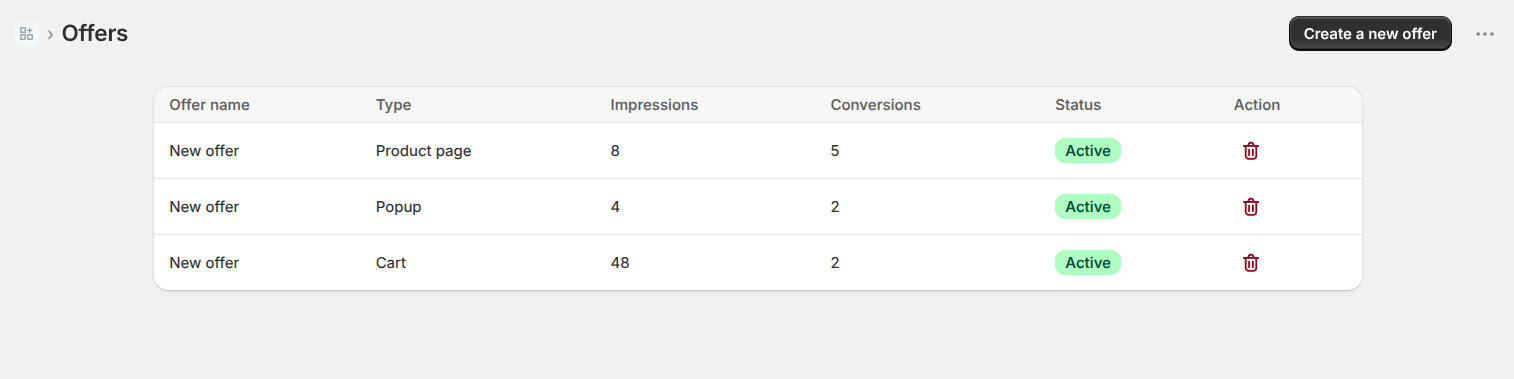
Every offer is built from three choices:
- Offer type – where the offer appears (product page, cart, or popup)
- Offer mechanic – what the offer does (cross-sell, volume discount, and so on)
- Visibility – which products or collections the offer applies to
Each offer also carries an on/off status. Active means it is live on the storefront; Draft means it is saved but never rendered, so you can prepare an offer in advance and switch it on when the campaign starts.
Enable the App Embed
The app renders through a theme app embed. This is a one-time step, and it is the most common reason an offer does not appear.
Step 1
In your Shopify admin, go to Online Store → Themes and click Customize on your live theme.
Step 2
Open the App embeds panel from the left-hand sidebar.
Step 3
Switch on MindTrek Upsell & Cross-sell, then click Save.

With the embed enabled, your offer configuration is delivered inside the page itself, so offers render immediately without waiting on a network request. If the embed is not enabled, the app falls back to fetching offers over the network – offers still work, but they appear slightly later.
Offer Types
The offer type decides where the offer is drawn. Choose the type first, because it determines which mechanics and placements are available.
Offer Types


Product Page Offer
Renders inside the product page, near the buy button. Best for recommending complementary items or add-ons while the shopper is still deciding.
Cart Offer
Renders on the cart page or in the cart drawer. Best for last-moment additions once the shopper has committed to buying.
Popup Offer
Draws over the page instead of inside it, so it needs no anchor in your theme and works on any theme. A popup is opened by a shopper action rather than placed in the layout:
- Product page – opens when Add to cart is pressed. The add is held while the popup is open and completes when the popup is closed, so nothing is lost if the shopper dismisses it.
- Cart page – opens when Checkout is clicked, and continues to checkout when the popup is closed.
A popup opens once per shopper per browsing session. It also runs independently of inline offers, so a product page offer and a popup can both be live on the same page.
Offer Mechanics
The mechanic decides what the offer does. Not every mechanic is available on every offer type – the editor only shows the ones that apply to the type you picked.
Cross-sell
Recommends other products alongside the one the shopper is looking at. Displayed as a carousel by default.

Product Add-on
Offers optional extras – a warranty, gift wrap, a matching accessory – that the shopper ticks to add. Displayed as a stacked list by default.

Frequently Bought Together
Presents a set of products as a group that is commonly purchased together, with the items preselected so the shopper adds the whole set in one action.

Volume Discount
Prices tiers of the same product – buy 2 save 10%, buy 3 save 15%, and so on. Quantities and savings come from the tier editor rather than from a recommended-products list.

Buy X Get Y
The other tier-based mechanic: buying a set quantity unlocks a further item or a reduced rate. Like Volume Discount, it is configured through tiers.

Creating an Offer
From the dashboard, open Offers and click New offer, then pick the offer type. The editor is organised into three tabs.
Content
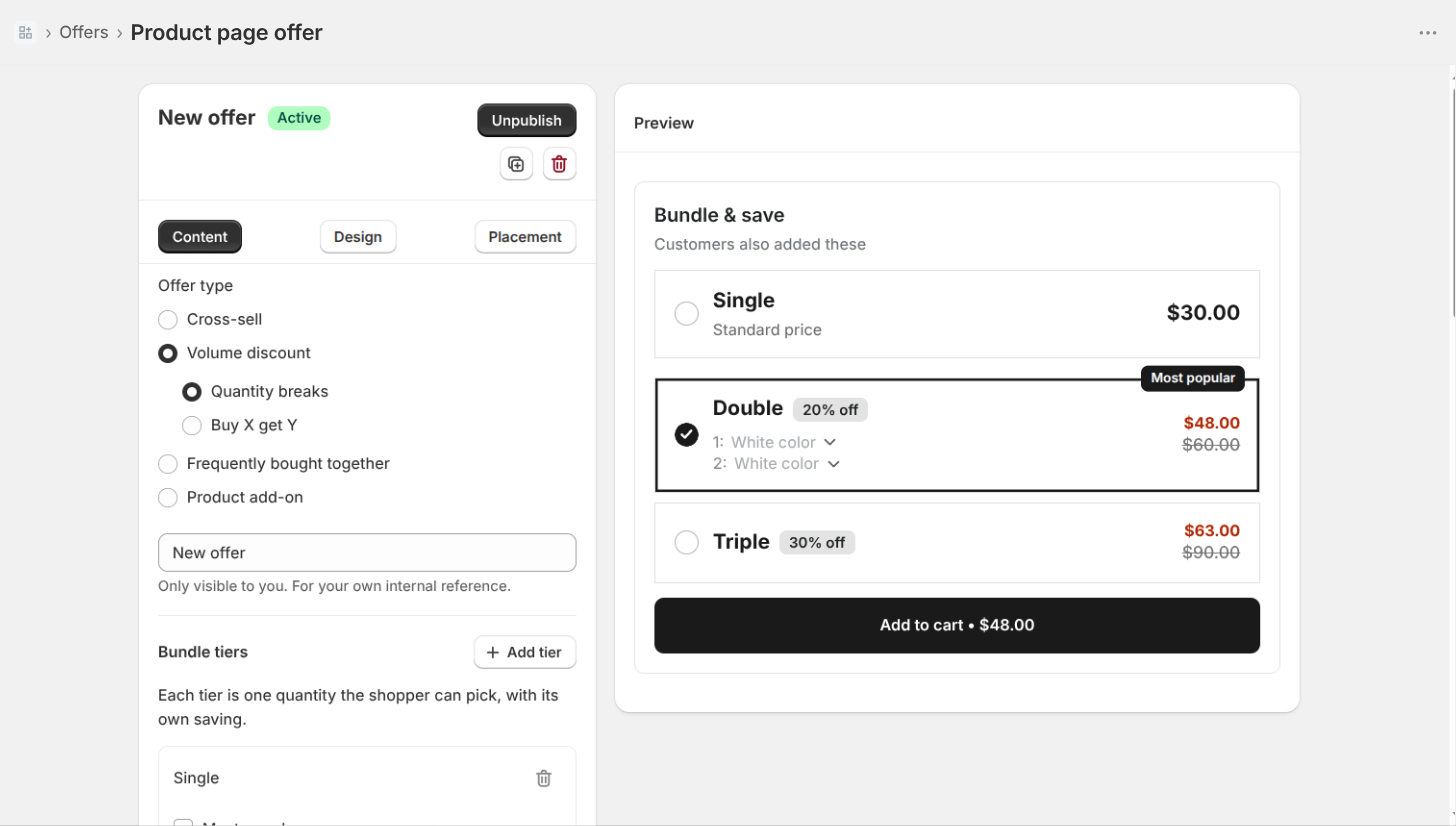
The offer's name, the heading and button text shoppers see, the mechanic, and the products involved:
- Visible products – whether the offer shows on all products, on specific products, or on specific collections
- Recommended products – the products the offer promotes, chosen with the built-in product and collection pickers
- Excluded products – products the offer must never appear on and must never recommend. Exclusions outrank everything else
- Countdown timer – an optional urgency bar on the offer, set either to a rolling countdown length per shopper or to one fixed end date shared by everyone
Design
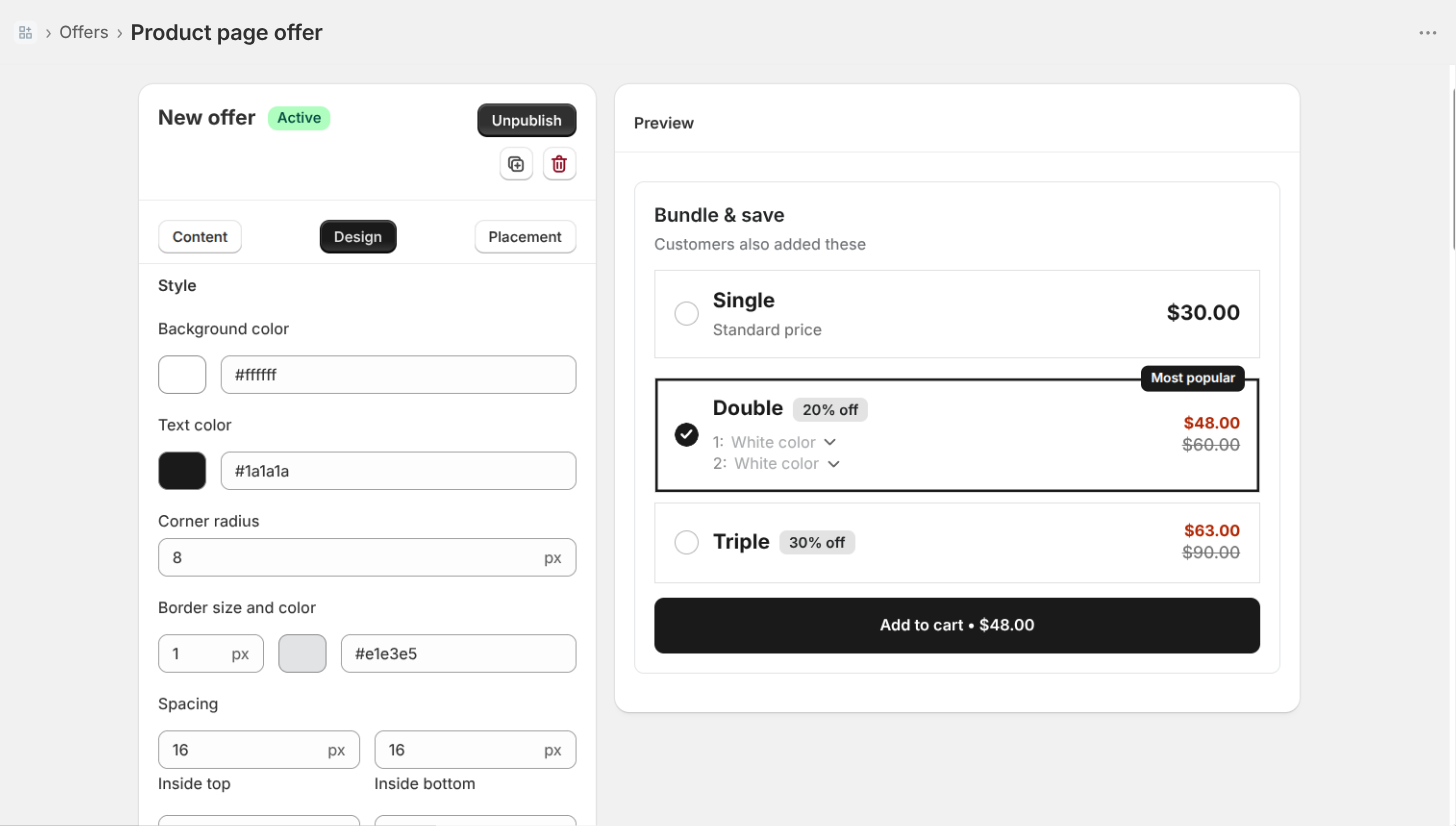
Colours, background, button styling and layout, so the offer matches your theme. Cross-sell and add-on offers can also switch between carousel and stacked layouts.
Placement
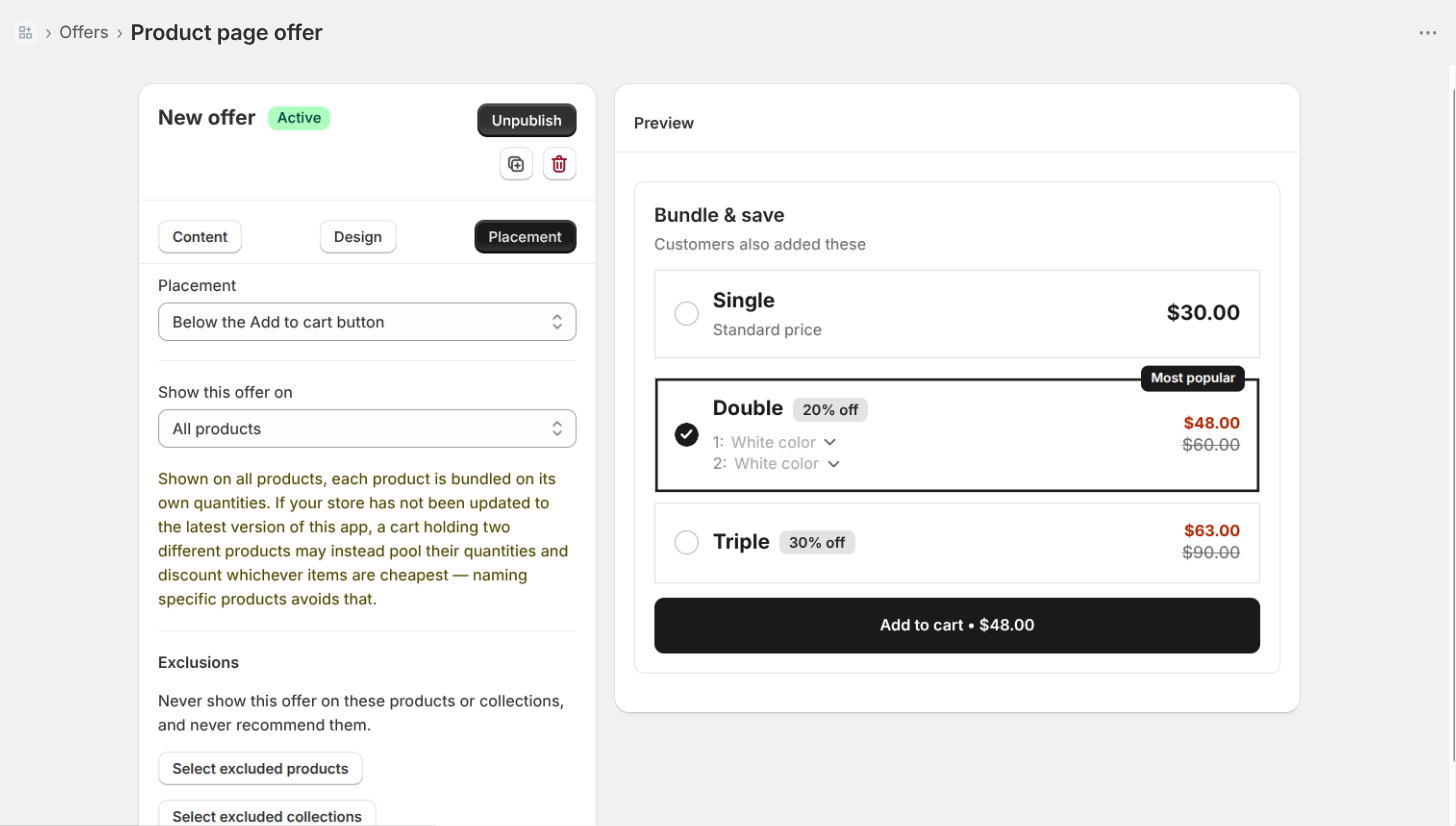
Where the offer sits in the page – see Placement below.
When you are ready, set the status to Active and save. Saving republishes your storefront configuration immediately, so a change is live as soon as it is saved.
Placement
Product page and cart offers are injected into your theme's own markup. The app tries each option below in order, so a placement that stops matching costs a good position but never the offer itself – it simply falls through to the next option.

Theme block (recommended)
Paste an empty div into your theme wherever you want the offer, and the offer renders inside it. The app shows you the exact snippet to copy on the Placement tab:
<div class="mindtrek-upsell-product-page-block"></div>For cart offers, use:
<div class="mindtrek-upsell-cart-block"></div>The class carries the offer type, not the offer id, so you paste the snippet in once and every offer of that type – today's and next month's – lands in it.
Custom selector
If you would rather point at an element your theme already has, supply a CSS selector and choose a position relative to it: before, after, inside top, or inside bottom.
Automatic
If you set neither, the app uses its built-in anchor list for the placement you chose. This works on most standard themes without any configuration.
Popup offers do not use placement for position – they overlay the page. For a popup, the placement setting instead decides what opens it: the product page Add to cart button, or the cart page Checkout button.
Discounts
When an offer carries a discount, the app creates a real Shopify automatic discount scoped to that offer's recommended product variants. Shopify then applies it whenever those variants are in a cart, so the shopper is charged the discounted price at checkout – the saving is not just a badge on the widget.

Discounts are re-synced whenever you save or delete an offer, and when you use the app on/off switch.
An offer gets no discount when:
- its discount switch is off, or its discount type is set to none
- its schedule has already ended
- the app is switched off
- it has no recommended variant to attach the discount to
Please note: because the discount is an automatic Shopify discount on those variants, it also applies when a shopper adds that product the ordinary way, not only through the offer widget.
Upgrading from an early version? The permission that lets the app create discounts was added after the app's first release. If you installed before then, offers still render and the saving still shows, but no discount is applied until you re-authorize the app. Reinstalling or reopening the app from your Shopify admin will prompt you to accept the new permission.
Analytics
The dashboard reports how each offer is performing, broken down by offer and by device (desktop or mobile). Three events are recorded:
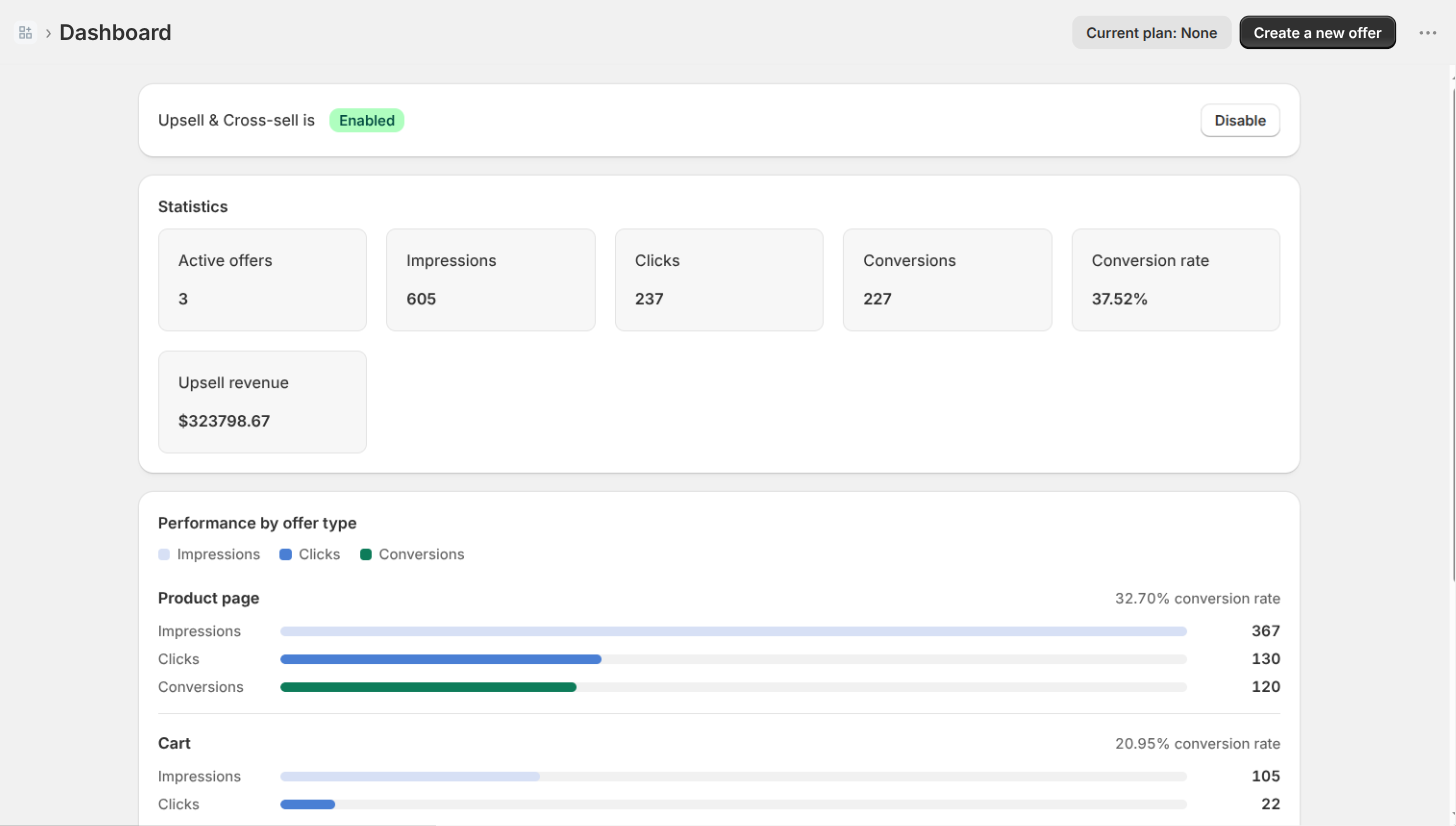
- Impression – the offer was shown to a shopper
- Click – a shopper interacted with the offer
- Conversion – a recommended product was added to the cart from the offer
Analytics record which offer and which product were involved, never who the shopper was – no customer names, emails or addresses are collected. See the Privacy Policy for details.
Pricing Plans
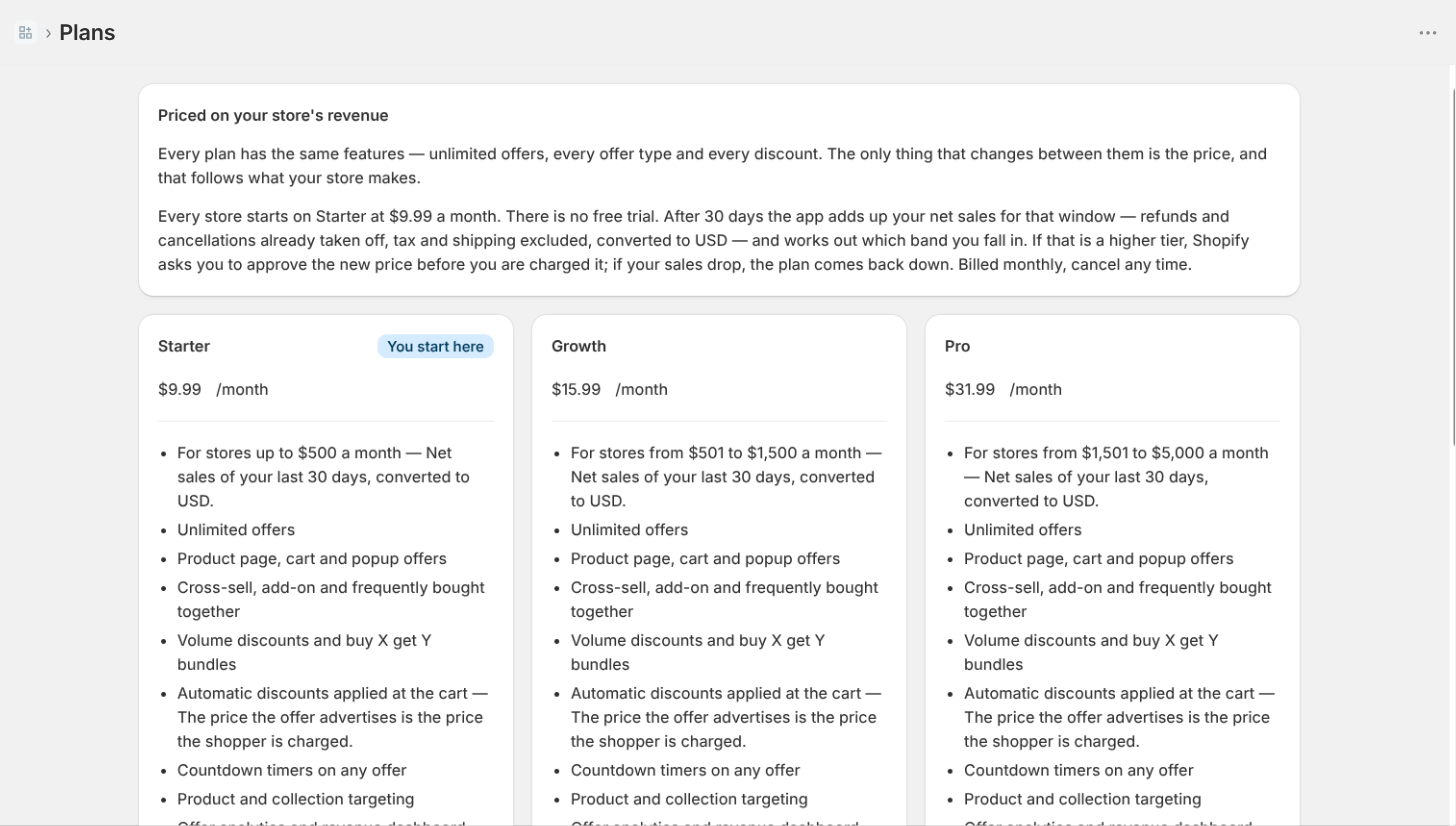
Every plan includes the same features. What changes is the band your store's trade falls into, measured on your net sales over the last 30 days:
| Plan | For stores with 30-day net sales |
|---|---|
| Starter | Up to $500 |
| Growth | $500 – $1,500 |
| Pro | $1,500 – $5,000 |
| Unlimited | Above $5,000 |
Because every tier has the same feature set, you are never charged more for access to a capability – only for the size of the store the app is working on. Moving up a band requires your approval through Shopify's own subscription screen, and a store is only moved up once its sales are comfortably past the boundary, so ordinary month-to-month variation does not repeatedly prompt you.
Troubleshooting
My offer is not showing on the storefront
Work through these in order:
- Is the app embed enabled in your live theme? This is by far the most common cause – see Enable the App Embed.
- Is the offer's status set to Active rather than Draft?
- Is the app's on/off switch turned on in the dashboard?
- Does the offer's visibility actually include the product you are viewing, and is that product not on the excluded list?
- Has the offer's schedule already ended?
My popup is not opening
Add ?up_popup=1 to your store URL. This opens the popup immediately, ignoring both its trigger and the once-per-session limit. If it opens there, the offer itself is fine and only the trigger is not firing on your theme – contact support and we will adjust it for your theme.
Adding ?up_debug=1 logs to the browser console which offer was armed, on what, and why anything was skipped.
The offer appears in the wrong place
Use the theme block snippet from the Placement section. It puts the offer exactly where you paste the div, rather than relying on the app to find an anchor in your theme.
The discount is not being applied at checkout
Confirm the offer's discount switch is on and the offer has at least one recommended product. If you installed the app before discounts were introduced, re-authorize the app so it can create discounts on your behalf.
Still stuck?
Email us at support@mindtrektechnologies.com with your store domain and the name of the offer, and we will take a look.