
Installing MindTrek: Upsell & Cross-sell on Wix
Follow the steps below to install MindTrek: Upsell & Cross-sell on your Wix site:
Step 1
Open the Wix App Market and locate the MindTrek: Upsell & Cross-sell app. Click Add to Site.
Step 2
Sign in to your Wix account if prompted. If you manage multiple sites, select the site where you want the app installed.
Step 3
Review the permissions and click Agree & Add. The app requests access to your store products and collections, your site's scripts and your discount rules – discounts access is needed so the app can create the real Wix discount behind each offer.
Step 4
The app opens in your Wix dashboard on the free Starter plan. You can create your first offer straight away and change plan at any time from the Plans page.
Introduction
MindTrek: Upsell & Cross-sell shows targeted product offers to shoppers while they are buying, so a visit that would have been one item becomes a larger order. Offers are created in the app dashboard inside your Wix dashboard and rendered on your Wix site by the app's own script – no code editing is required for a standard setup.
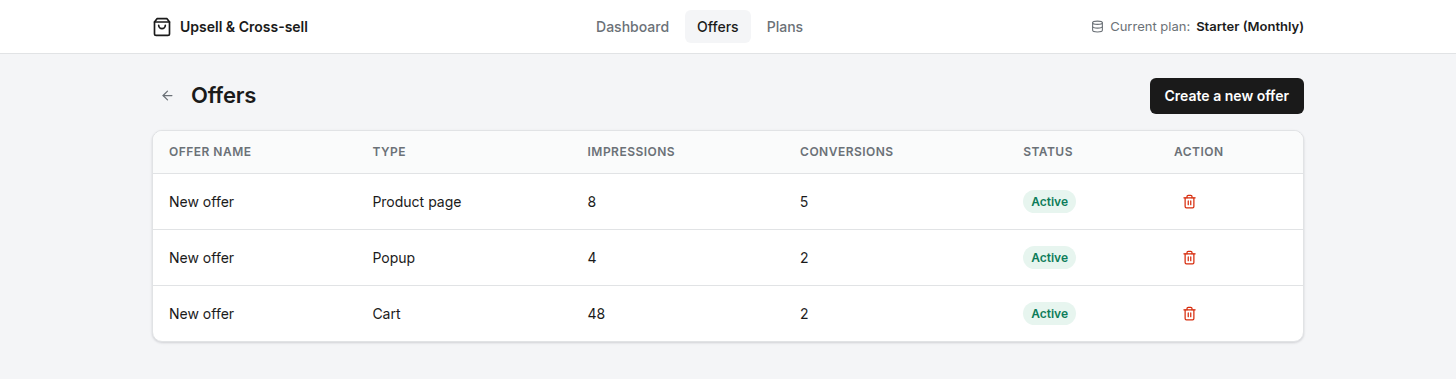
Every offer is built from three choices:
- Offer type – where the offer appears (product page, cart, or popup)
- Offer mechanic – what the offer does (cross-sell, volume discount, and so on)
- Visibility – which products or collections the offer applies to
Each offer also carries an on/off status. Active means it is live on the storefront; Draft means it is saved but never rendered, so you can prepare an offer in advance and switch it on when the campaign starts.
How Offers Reach Your Store
There is no embed to switch on. When you install the app, it adds its storefront script to your site automatically through the Wix apps API, so offers can render as soon as they are saved.
Make sure your site is published – offers only appear on the live site, not in the Wix Editor. Wix free sites and Studio previews are supported, including URLs that start with your site name.
If you uninstall and reinstall the app, the script is removed and added again with it. You do not need to paste any code for offers to work – code is only needed for the optional Theme block placement.
Offer Types
The offer type decides where the offer is drawn. Choose the type first, because it determines which mechanics and placements are available.
Product Page Offer
Renders inside the product page, near the buy button. Best for recommending complementary items or add-ons while the shopper is still deciding.
Cart Offer
Renders on the Wix cart page. Best for last-moment additions once the shopper has committed to buying.
Wix's side cart is a closed widget that apps cannot draw into, so cart offers on Wix appear on the cart page only.
Popup Offer
Draws over the page instead of inside it, so it needs no anchor in your site and works with any Wix template. A popup is opened by a shopper action rather than placed in the layout:
- Product page – opens when Add to cart is pressed. The add is held while the popup is open and completes when the popup is closed, so nothing is lost if the shopper dismisses it.
- Cart page – opens when Checkout is clicked, and continues to checkout when the popup is closed.
A popup opens once per shopper per browsing session. It also runs independently of inline offers, so a product page offer and a popup can both be live on the same page.
Offer Mechanics
The mechanic decides what the offer does. Not every mechanic is available on every offer type – the editor only shows the ones that apply to the type you picked.
Cross-sell
Recommends other products alongside the one the shopper is looking at, each with its own add button. Displayed as a carousel by default.
Product Add-on
Offers optional extras – a warranty, gift wrap, a matching accessory – that the shopper ticks to add together. Displayed as a stacked list by default.
Frequently Bought Together
Presents the product being viewed plus its companions as one bundle, with the items preselected so the shopper adds the whole set in one action.
Volume Discount
Prices tiers of the same product – buy 2 save 10%, buy 3 save 15%, and so on. Quantities and savings come from the tier editor rather than from a recommended-products list.
Buy X Get Y
The other tier-based mechanic: buying a set quantity unlocks free items, priced as the equivalent rate over the whole bundle. Like Volume Discount, it is configured through tiers.
Cart offers support Cross-sell and Product Add-on only. Frequently Bought Together, Volume Discount and Buy X Get Y need a single product to build around, which a cart does not have.
Creating an Offer
From the dashboard, open Offers and click New offer, then pick the offer type. The editor is organised into three tabs.
Content
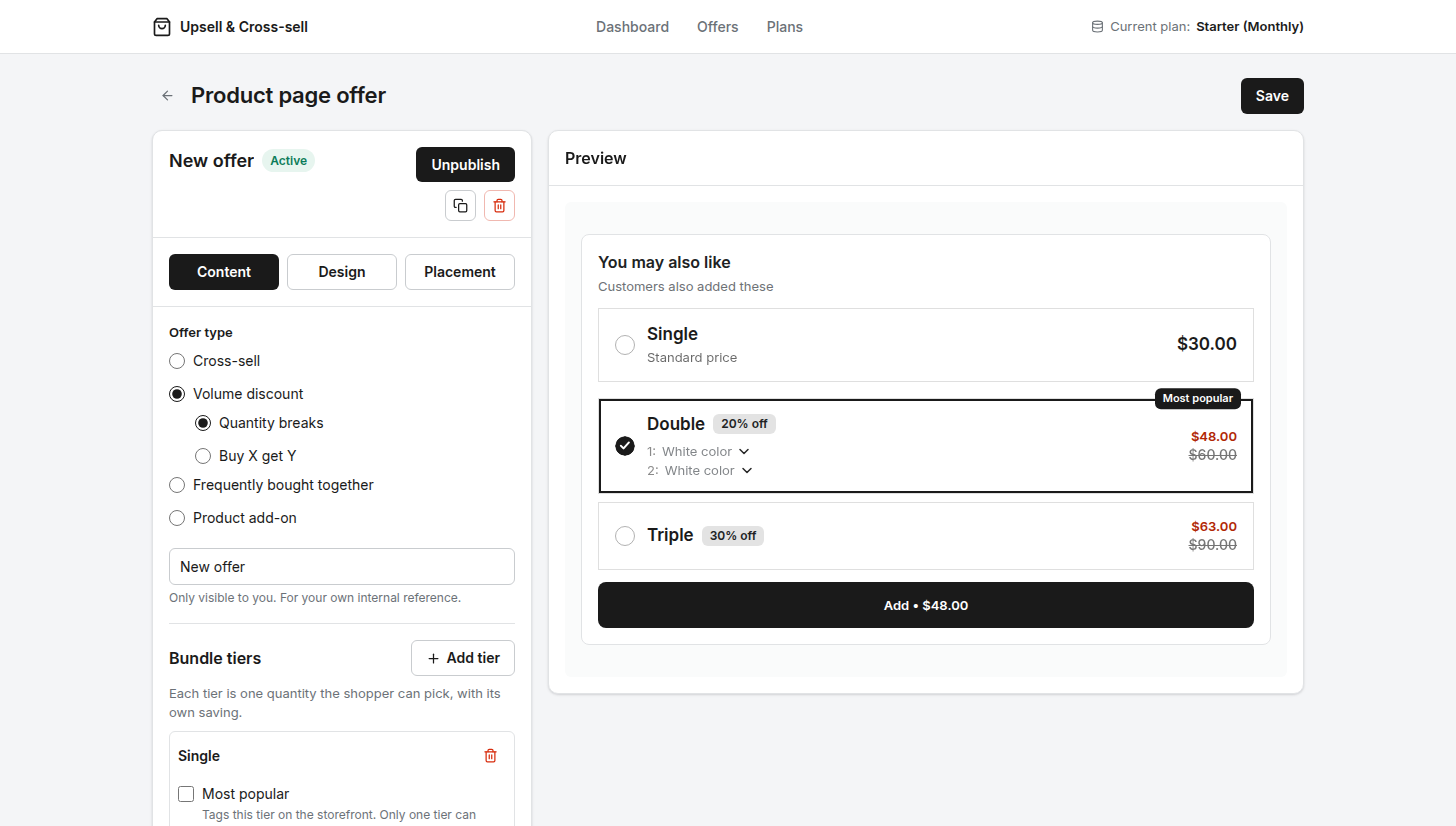
The offer's name, the heading and button text shoppers see, the mechanic, and the products involved:
- Visible products – whether the offer shows on all products, on specific products, or on specific collections
- Recommended products – the products the offer promotes, chosen with the built-in product and collection pickers, or set to Automatic to recommend other products from the same collections
- Excluded products – products the offer must never appear on and must never recommend. Exclusions outrank everything else
- Countdown timer – an optional urgency bar on the offer, set either to a rolling countdown length per shopper or to one fixed end date shared by everyone
Design
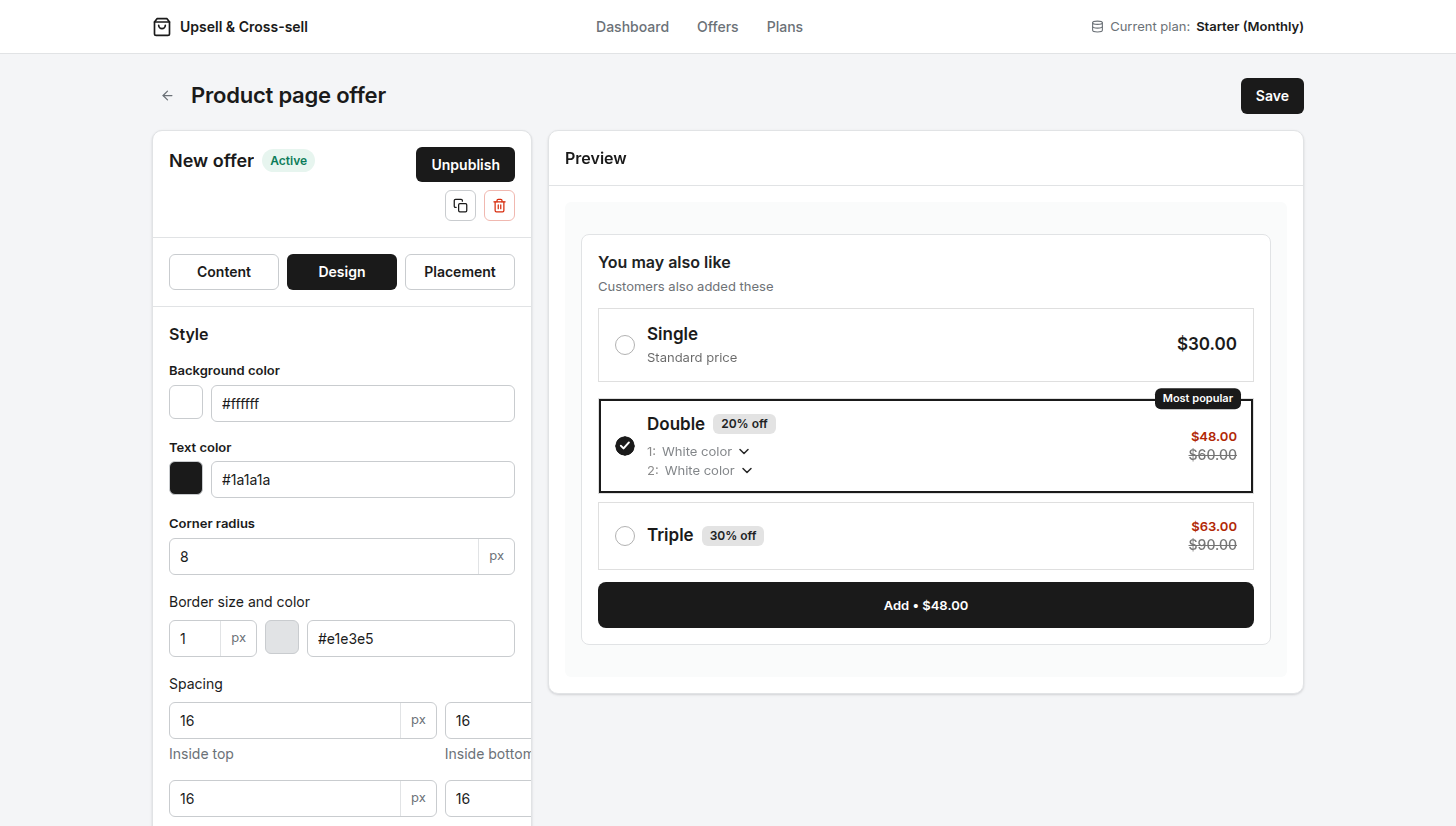
Colours, background, button styling and layout, so the offer matches your site. Cross-sell and add-on offers can also switch between carousel and stacked layouts.
Placement
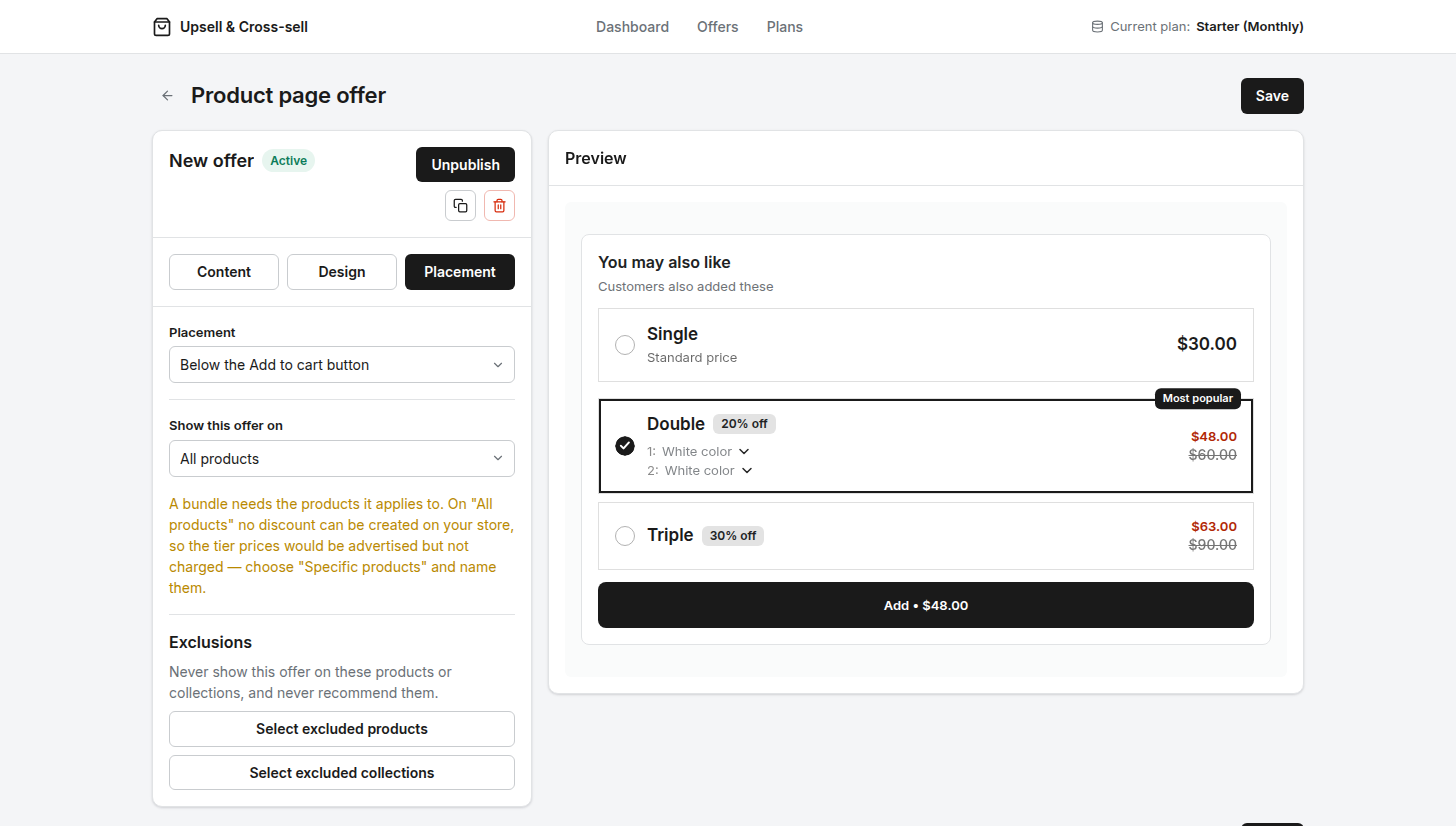
Where the offer sits in the page – see Placement below.
When you are ready, set the status to Active and save. It can take up to 20 seconds for a change to appear on your storefront.
Placement
Product page and cart offers are injected into your page's own markup. The app tries each option below in order, so a placement that stops matching costs a good position but never the offer itself – it simply falls through to the next option.
Theme block (recommended)
Paste an empty div wherever you want the offer, and the offer renders inside it. The app shows you the exact snippet to copy on the Placement tab:
<div class="mindtrek-upsell-product-page-block"></div>For cart offers, use:
<div class="mindtrek-upsell-cart-block"></div>The class carries the offer type, not the offer id, so you paste the snippet in once and every offer of that type – today's and next month's – lands in it.
Wix has no theme files, so the snippet goes in through Custom Code:
- In your Wix dashboard, go to Settings › Custom Code.
- Click + Add Custom Code and paste the snippet into the code box.
- Set Place Code In to Body – end, choose the pages the offer should appear on, then apply.
Please note: your site has to be published and have a connected domain before Wix accepts custom code. Do not use an HTML embed element – it renders inside an iframe, where the app cannot reach it.
Custom selector
If you would rather point at an element your page already has, supply a CSS selector and choose a position relative to it: before, after, inside top, or inside bottom.
Automatic
If you set neither, the app uses its built-in anchor list for the placement you chose. This works on standard Wix product and cart pages without any configuration.
Popup offers do not use placement for position – they overlay the page. For a popup, the placement setting instead decides what opens it: the product page Add to cart button, or the cart page Checkout button.
Discounts
When an offer carries a discount, the app creates a real Wix discount rule on your store, scoped to that offer's recommended products. Wix then applies it whenever those products are in a cart, so the shopper is charged the discounted price at checkout – the saving is not just a badge on the widget.
Discounts are re-synced whenever you save or delete an offer, and when you use the app on/off switch.
An offer gets no discount when:
- its discount switch is off, or its discount type is set to none
- its schedule has already ended
- the app is switched off
- it has no recommended product to attach the discount to
- your store has used up its plan's impressions – discounts are withdrawn along with the offers until you upgrade
Please note: because the discount is a Wix discount rule on those products, it also applies when a shopper adds that product the ordinary way, not only through the offer widget.
Analytics
The dashboard reports how each offer is performing, broken down by offer and by device (desktop or mobile). Three events are recorded:
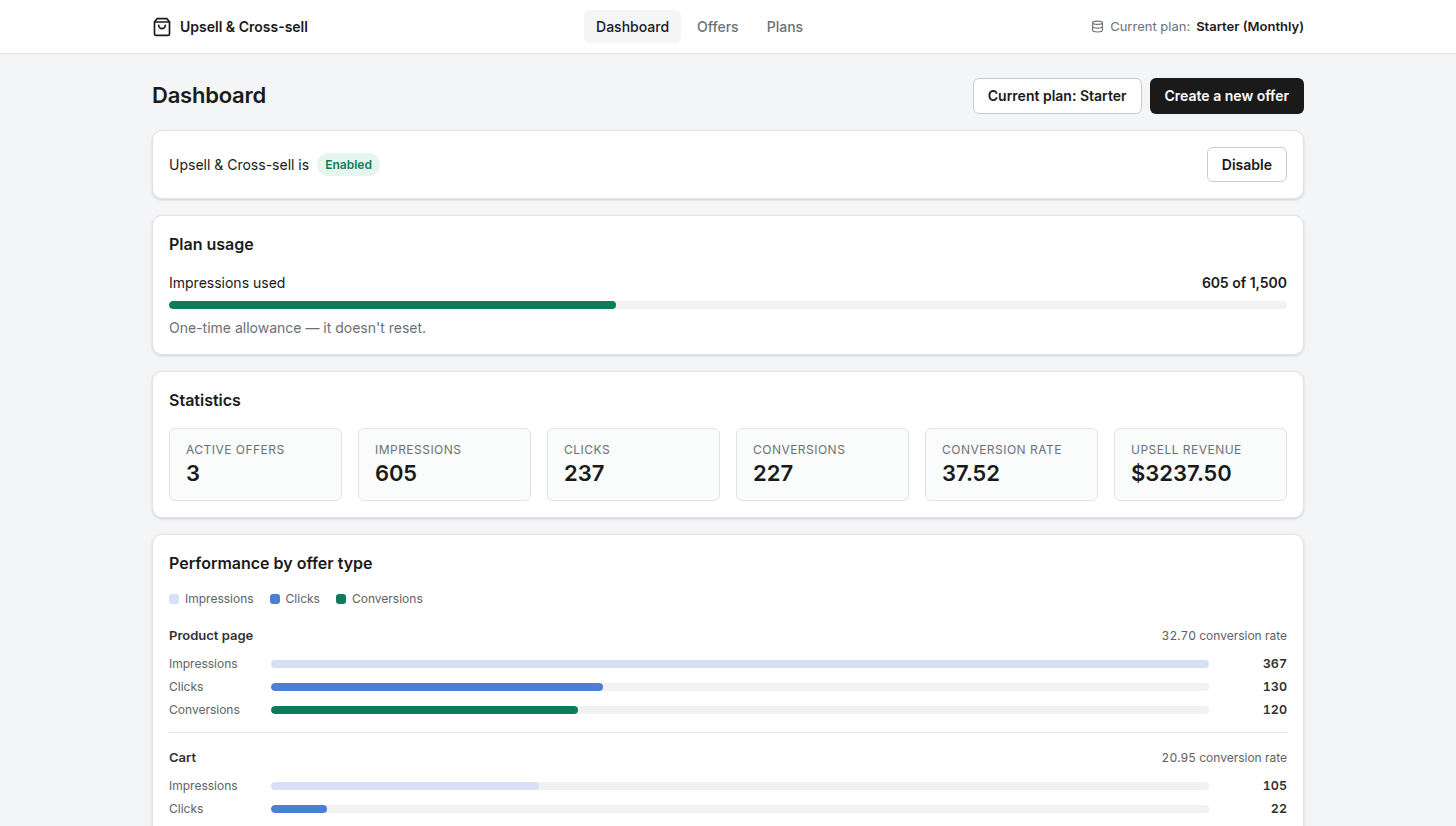
- Impression – the offer was shown to a shopper
- Click – a shopper interacted with the offer
- Conversion – a recommended product was added to the cart from the offer
Analytics record which offer and which product were involved, never who the shopper was – no customer names, emails or addresses are collected. See the Privacy Policy for details.
Pricing Plans
Every plan includes the same features – unlimited offers, every offer type and every discount. What changes is how many impressions you get. An impression is one offer shown to one shopper, counted across all your offers combined.
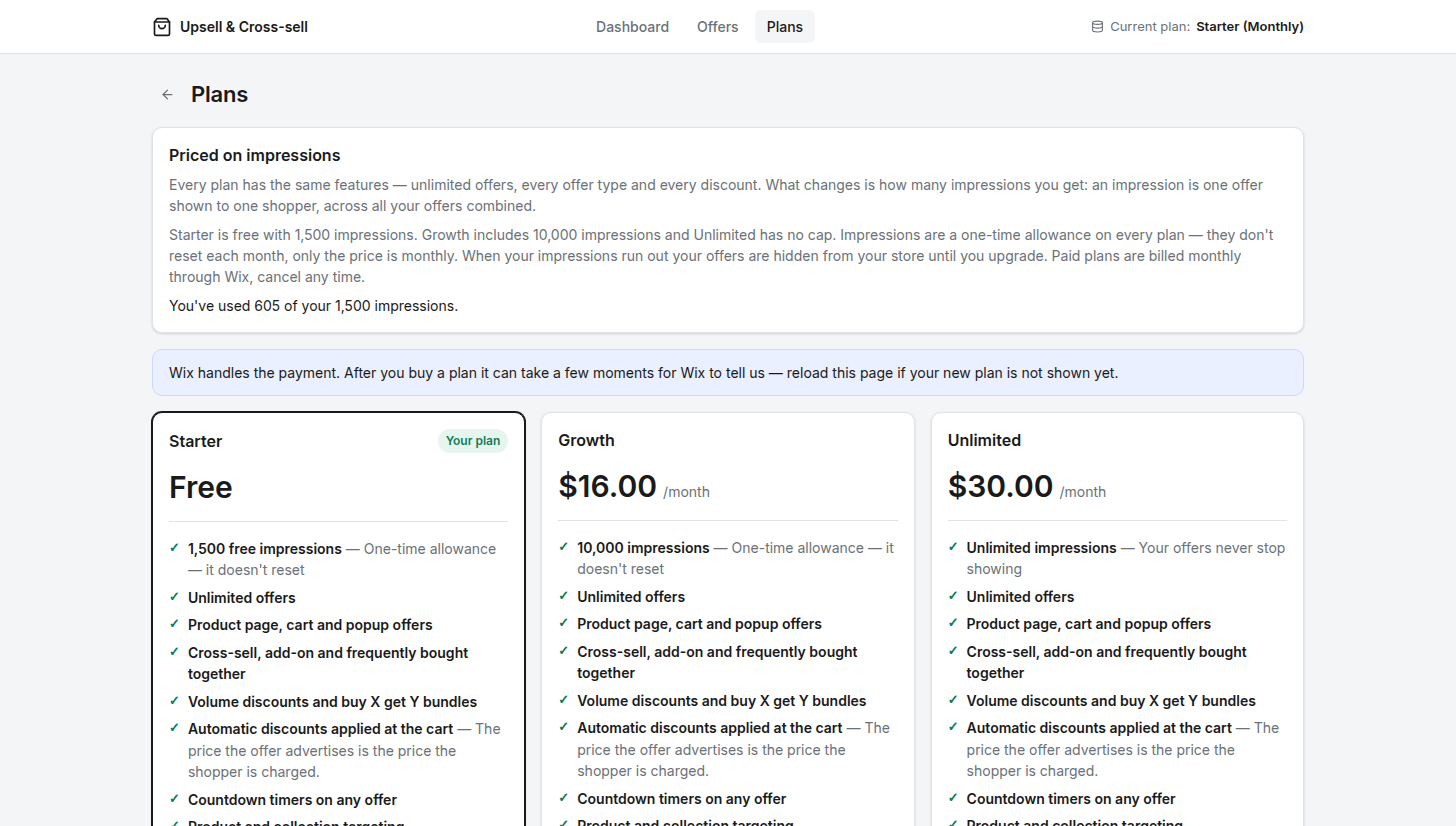
| Plan | Price | Impressions |
|---|---|---|
| Starter | Free | 1,500 |
| Growth | $16 / month | 10,000 |
| Unlimited | $30 / month | No cap |
Impressions are a one-time allowance on every plan – they do not reset each month, only the price is monthly. When your impressions run out, your offers are hidden from your store until you upgrade, and they come back straight away once you do.
Paid plans are bought through Wix's own pricing page – choosing a plan in the app takes you there – and are billed monthly by Wix. To cancel a paid plan, cancel it from your Wix account.
Troubleshooting
My offer is not showing on the storefront
Work through these in order:
- Is your site published? Offers only appear on the live site, not in the Wix Editor preview.
- Is the offer's status set to Active rather than Draft?
- Is the app's on/off switch turned on in the dashboard?
- Does the offer's visibility actually include the product you are viewing, and is that product not on the excluded list?
- Has the offer's schedule already ended?
- Have you used up your plan's impressions? The dashboard shows how many are left.
My popup is not opening
Add ?up_popup=1 to your store URL. This opens the popup immediately, ignoring both its trigger and the once-per-session limit. If it opens there, the offer itself is fine and only the trigger is not firing on your site – contact support and we will adjust it.
Adding ?up_debug=1 logs to the browser console which offer was armed, on what, and why anything was skipped.
The offer appears in the wrong place
Use the theme block snippet from the Placement section. It puts the offer exactly where you paste the div, rather than relying on the app to find an anchor in your page. If you used Custom Code, check the code is set to Body – end and applied to the page you are viewing.
The discount is not being applied at checkout
Confirm the offer's discount switch is on and the offer has at least one recommended product. You can see the rule the app created under Marketing › Coupons & Discounts in your Wix dashboard.
Still stuck?
Email us at support@mindtrektechnologies.com with your Wix site URL and the name of the offer, and we will take a look.